
procedures:freepbx_sipdiversion
This is an old revision of the document!
Table of Contents
FreePBX Sip Diversion
You have to follow this guide for both ArquatiPBX (52.57.247.41) and ArquatiPBX_bkp (35.156.113.252)
Starting the server
First, you need to turn on the backup server.
You can do this on  AWS by clicking on this link.
Once the page is open, search for the ArquatiPBX_bkp server, select it, click on the Instance State button

and select start instance.

Preparation
- Click on the Access Numbers section and choose a number. You will use this number as an example to copy the next configurations.
The following photo is only an illustrative example.



Procedure
Follow this step for both ArquatiPBX and ArquatiPBX_bkp
- Click on FreePBX Administration and login

- Connectivity > Trunks and search for the number you chose during the preparation step
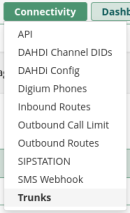
The following photo is only an illustrative example.

- Click on the modify button in Action section and press Duplicate
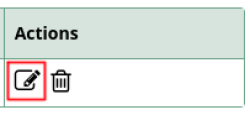
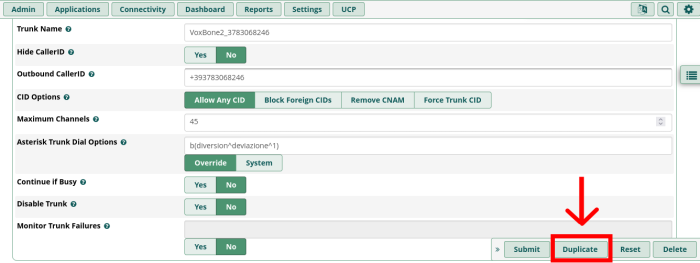
- Now replace the number in the copy with the one given to you by Arquati (don't forget to keep the +39 in Outbound CallerID).
Be sure to check the other sections as well to replace it

- Connectivity > Outbound Routes, ctrl + f and search for the number you chose during the preparation step
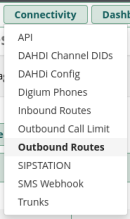
- Click on the modify button in Action section and press Duplicate
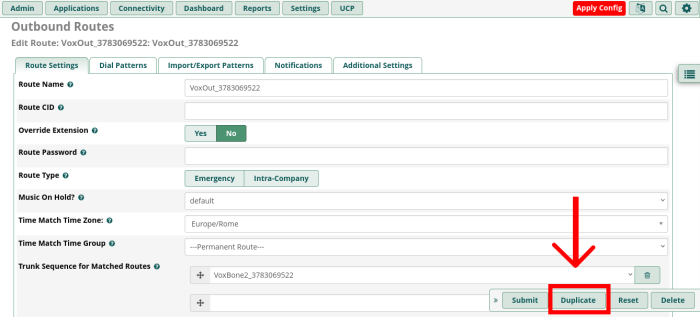
- Now replace the number in the copy with the one given to you by Arquati.
// Don't forget to change these trunks with the one you created ).

Be sure to check the other sections as well to replace the number

- Connectivity > Inbound Routes here there is no way to duplicate an existing inbound route, so you will need to copy it manually (you could open two windows to copy it easily).
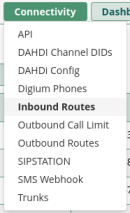
- To create a new Inbound Route click on //Add Inbound Routes

- Now copy the entire configuration, making sure to change the number with the one provided by Arquati.
Make sure to change Set Destination by selecting the Trunks option and choosing the trunk you created earlier.

Be sure to check the other sections as well to replace the number and set the right configuration

- And MOST IMPORTANT click on Apply Config to save your changes

- Lastly, add the number on the sysmgmt and test it


procedures/freepbx_sipdiversion.1772193614.txt.gz · Last modified: by gemma.coppeta