
Table of Contents
New customer creation
Steps
- Create a new tenant.
- Add the purchased numbers to the shared file Costi fornitori tecnici.
- Add the customer's name to the file Traffico Telefonico.
- Add the purchased numbers to the file CDRs numbers.
- Create the Customer object in the customers array in the cdrs.py.
- Create the Result object in the results array in the monthlyResults.py file.
- The customer's name must be added in the customers array to the Recharges file.
- The customer's name must be added to the Voice balance dashboard on Grafana.
- An Alert rule on Grafana must be created for the new customer.
- The customer's name must be added to the Monitor database.
New tenant creation
To create a new  tenant you can follow the New tenant creation guide.
IT Billing
The purchased numbers must be entered in the shared file in  IT Billing for technical supplier costs.
Depending on the carrier you are using, you will need to add a row to the table or add a unit in the quantity column.
The customer's name must be added to the Traffico Telefonico file.
Add a new sheet, copy an existing one and delete the data inside of it.
BeCloud's Git
Once you open this link, you will find yourself in the CDRs repository.
- Click on numbers.csv, then click on the
 edit button and add one or more lines with the number, customer's name and the rate applied to the number.
 - Click on cdrs.py, then click the edit button and create the Customer object with the customer's name and all zeros in the customers array. The zeros will be filled in during the course of the code and represent the inbound/outbound cost for each carrier.
Follow this example:customers = [ Customer("Name",0,0,0,0,0,0,0,0,0,0,0,0), ... ]
- Click on the Monthly folder and on monthlyResults.py, then click the edit button and create the Result object with the customer's name, the name of the carrier in all caps and all zeros in the results array. The zeros will be filled in during the code and represent the inbound/outbound cost of BeCloud and the customer.
Follow this example:results = [ Result("Name","CARRIER",0,0,0,0), ... ]
Once you open this link, you will find yourself in the Recharges repository.
Click on recharges.php, then click the  edit button and add the customer's name in the customers array.
Grafana
- Once you open
 this link, you will find yourself in the Voice balance monitor.
To add a new customer, you have to click the edit button, then go to an existing panel, click on the three dots, hover your mouse over the “more” option and then click on duplicate.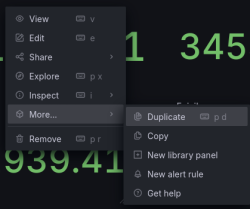
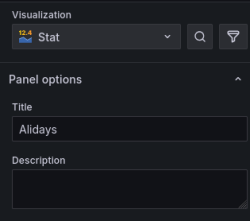
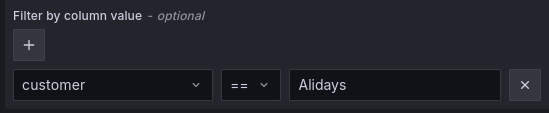
Once you have created the copy, you will need to edit it by replacing the field title and the value of the column customer with the name of the new customer.
Here's an example with the customer “Alidays”:
Now you can save and exit the edit mode.


- Once you open this link, you will find yourself in the Alert rules list and you have to look to the Balances_monitor.
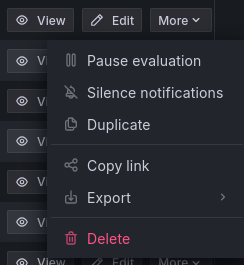
To add a new customer, you have to click the more button of an existing alert rule and click on duplicate
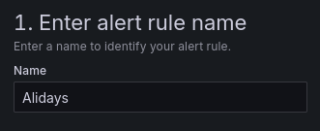
Once you have created the copy, you will need to edit it by replacing the field title and the value of the column customer with the name of the new customer.
Here's an example with the customer “Alidays”:
Now you can save and exit the edit mode.


Database
You must add the customer's name to the “recharges” and “customers” tables in the Monitor database of the Monitoring machine.