
This is an old revision of the document!
Table of Contents
Custom Reports: How-To
In the following guide, you will learn how to create custom reports. As per standards, the BeCloud platform provides a series of built-in reports that will help the customer to analyze the overall statistics of any kind of interaction flow. But, since the built-in reports don't provide some data (eg. when you build a custom flow, or when the customer demands to retrieve a specific data), they can be customized by a BeCloud Technician to satisfy the customer demand.
To be able to create a custom report, you must meet some requirements, specifically:
- An average knowledge of SQL, the more focussed on MariaDB, the merrier;
- Have installed a query constructor application;
- Have installed JasperSoft Reports Studio;
If this is your first time downloading this kind of software, please refer to the Resources chapter of this tutorial for a list of readily available resources.
Resources
As per resources where download some applications, these are the ones suggested by the BeCloud Technical team:
- SQL formulas and tricks: https://www.w3schools.com/sql/
- DBeaver - SQL Constructor: https://dbeaver.io/download/
- JasperSoft Reports Studio - Report builder: https://community.jaspersoft.com/download-jaspersoft/commercial-edition/
Configuration
After installing the JasperSoft Reporting Application, you must tune/configure your new application in order to not encounter any kind of errors when building the report.
A quick disclaimer: the downloaded version of JasperSoft Reporting Application doesn't matter, but you must configure the Compatibility Version as explained below.
First, in order to retrieve the correct version to be used, it is necessary to navigate to the Help Page of BrightPattern. On the “Partner Docs,” you must search “Custom Reporting Tutorial.” Under the “Downloading Libraries and Localisation Resources,” you can find some files that can be downloaded that contain the.jar files with the version of the compatibility version.
Inside you will find a file named “jasperreports-(version).jar”, Keep in mind this version as it will be used for the next step.
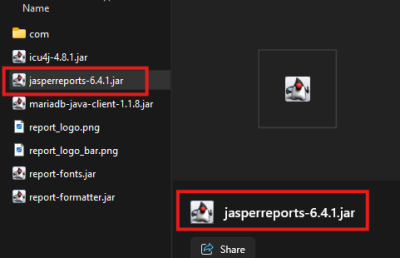
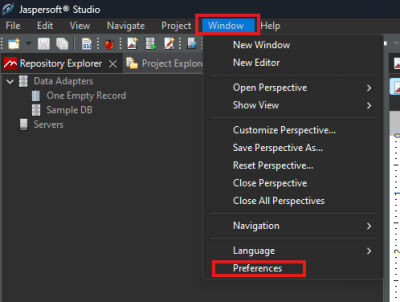
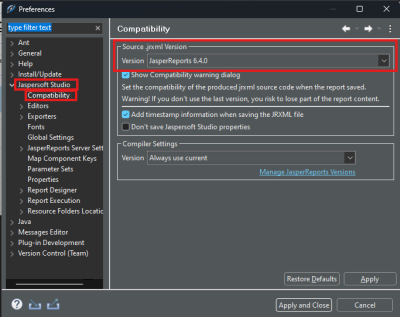
Now, open your JasperSoft application, and by following this pattern (Window > Preferences > JasperSoft Studio > Compatibility) on “Source.jrxml Version,” select the nearest version of the BrightPattern libraries. In the image provided before, you can see that in my case the version was “jasperreports-6.4.1.jar,” so I will choose the Compatibility Version to 6.4.0 in order to satisfy the requirements of BrightPattern.
After you can just “Apply and Close” to apportion the changes, a quick restart of the Application is recommended.
Building the Custom Report
Starting with Building the Custom Report.
For starters, you must log in to the Admin page of the tenant in which the custom report will be uploaded. This is because the custom report will be based on an existing report, which will be called “Template” in this guide, so you must first locate the table that you will interrogate for extrapolating the demanded data/pieces of information for constructing the query. These built-in reports can be downloaded from the Admin page following the pattern “Reporting > Report Templates,” and by clicking on the desired template, you can download the .jrxml file.
As per the Example of this scope, the following tutorial will be based on the report Call Detail and the custom report built for Beeasy “Riepilogo Annuo Linea Gestioni” for its complexity.
The scope of this report was to have a monthly/daily report of handled calls for each Toll-Free number, with also the handled times (e.g., answered in 5s, 10s, 20s, abandoned in 5s, 10s, 20s, etc.). Given this context, the first approach you must handle is the kind of Template you must download; in this case, since the query has various intervals, it was first downloaded the “Service in Time—Voice and Chat” report.
Open the .jrxml file with the JasperSoft Report Studio application and double-click the columns to access the edit page where the main SQL query is located (1) and access the “Dataset and Query Dialogue” (2):
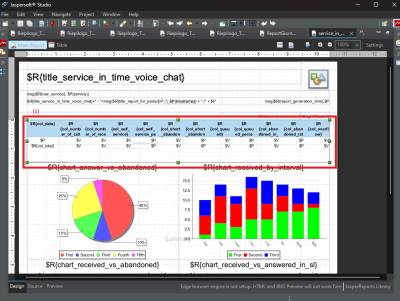
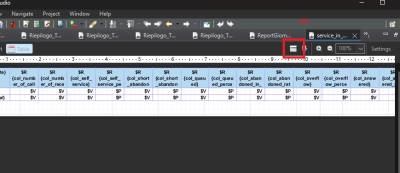
Here you will have a template query where you can build your desired query. In the case of the report “Riepilogo Annuo Linea Gestioni”, the custom query was built in the following:
SELECT
    id,
    start_time,
    DATE_FORMAT(start_time, '%d/%m/%Y') as full_date,
    DATE_FORMAT(start_time, '%W') as formatted_day,
    (CASE
        WHEN custom1 LIKE '%Crema%' THEN 'CREMA'
        WHEN custom1 LIKE '%Cremona%' THEN 'CREMONA'
        WHEN custom1 LIKE '%Lodi%' THEN 'LODI'
        WHEN custom1 LIKE '%Rovato%' THEN 'ROVATO'
    END) as nv.
    COUNT(CASE
        WHEN queue_time > 0 OR pending_time > 0 THEN 1
    END) as offered,
    COUNT(CASE
        WHEN (talk_time > 0) AND (disposition NOT LIKE 'ABANDONED%' ) THEN 1
    END) as answered,
    ROUND((COUNT(CASE
        WHEN (talk_time > 0) AND (disposition NOT LIKE 'ABANDONED%' ) THEN 1
    END) * 100) / NULLIF(COUNT(CASE)
        WHEN queue_time > 0 OR pending_time > 0 THEN 1
    END), 0), 2) as perc_answered,
    (COUNT(CASE
        WHEN queue_time > 0 OR pending_time > 0 THEN 1
    END) - COUNT(CASE
        WHEN (talk_time > 0) AND (disposition NOT LIKE 'ABANDONED%' ) THEN 1
    END)) as abandoned,
    ROUND(99 + (COUNT(CASE))
        WHEN queue_time > 0 OR pending_time > 0 THEN 1
    END) - COUNT(CASE
        WHEN (talk_time > 0) AND (disposition NOT LIKE 'ABANDONED%' ) THEN 1
    END) * 100 ) / NULLIF(COUNT(CASE)
        WHEN queue_time > 0 OR pending_time > 0 THEN 1
    END), 0), 2) as perc_abandoned,
    (SUM(queue_time) + SUM(pending_time)) as tma,
    AVG(talk_time) as tmc,
    COUNT(CASE
        WHEN pending_time < 5 AND (disposition NOT LIKE 'ABANDONED%' ) AND custom1 IS NOT NULL THEN 1
    END) as answered_5,
    COUNT(CASE
        WHEN pending_time < 10 AND (disposition NOT LIKE 'ABANDONED%' ) THEN 1
    END) as answered_10,
    COUNT(CASE
        WHEN pending_time < 20 AND (disposition NOT LIKE 'ABANDONED%' ) THEN 1
    END) as answered_20,
    COUNT(CASE
        WHEN pending_time < 30 AND (disposition NOT LIKE 'ABANDONED%' ) THEN 1
    END) as answered_30,
    COUNT(CASE
        WHEN pending_time < 40 AND (disposition NOT LIKE 'ABANDONED%' ) THEN 1
    END) as answered_40,
    (COUNT(CASE
        WHEN (queue_time < 5 OR pending_time < 5) AND (disposition LIKE 'ABANDONED%' ) THEN 1
    END) - COUNT(CASE
        WHEN (talk_time < 0) AND (disposition LIKE 'ABANDONED%' )THEN 1
    END)) as abandoned_5,
        (COUNT(CASE
        WHEN (queue_time < 10 OR pending_time < 10) AND (disposition LIKE 'ABANDONED%' ) THEN 1
    END) - COUNT(CASE
        WHEN (talk_time < 0) AND (disposition LIKE 'ABANDONED%' ) THEN 1
    END)) as abandoned_10,
        (COUNT(CASE
        WHEN (queue_time < 20 OR pending_time < 20) AND (disposition LIKE 'ABANDONED%' ) THEN 1
    END) - COUNT(CASE
        WHEN (talk_time < 0) AND (disposition LIKE 'ABANDONED%' )  THEN 1
    END)) as abandoned_20,
        (COUNT(CASE
        WHEN (queue_time < 30 OR pending_time < 30) AND (disposition LIKE 'ABANDONED%' ) THEN 1
    END) - COUNT(CASE
        WHEN (talk_time < 0) AND (disposition LIKE 'ABANDONED%' )  THEN 1
    END)) as abandoned_30,
        (COUNT(CASE
        WHEN (queue_time < 40 OR pending_time < 40) AND (disposition LIKE 'ABANDONED%' ) THEN 1
    END) - COUNT(CASE
        WHEN (talk_time < 0) AND (disposition LIKE 'ABANDONED%' )  THEN 1
    END)) as abandoned_40
FROM
    beeasy_it.call_detail cd
WHERE
    start_time >= $P{start_time} AND start_time < $P{end_time}
    AND disposition NOT LIKE 'TRANSFERRED' AND disposition NOT IN ('CONFERENCED', 'CALLER_TRANSFERRED')
    AND service_name = 'Linea Gestioni'
    AND caller_phone_type = 'EXTERNAL' AND callee_phone_type = 'INTERNAL'
    AND (media_type <> 'EMAIL' or media_type is null)
    AND (CASE
        WHEN custom1 LIKE '%Crema%' THEN 'CREMA'
        WHEN custom1 LIKE '%Cremona%' THEN 'CREMONA'
        WHEN custom1 LIKE '%Lodi%' THEN 'LODI'
        WHEN custom1 LIKE '%Rovato%' THEN 'ROVATO'
    END) IS NOT NULL
    AND (queue_time > 0 or pending_time > 0)
GROUP BY
    DATE_FORMAT(start_time, '%d/%m/%Y'),
    (CASE
        WHEN custom1 LIKE '%Crema%' THEN 'CREMA'
        WHEN custom1 LIKE '%Cremona%' THEN 'CREMONA'
        WHEN custom1 LIKE '%Lodi%' THEN 'LODI'
        WHEN custom1 LIKE '%Rovato%' THEN 'ROVATO'
    END) asc;
Developing the report: Query
To develop a query, open the “DataSet and Query editor dialog” on Jasper and a query constructor application (eg. DBeaver) and start to develop the query based on the requirement.
As an example, let's think about a customer that is requesting a report that can display these data:
- Date;
- Inbound Calls Received;
- Outbound Calls Made;
- Service-name;
- Talk-Time;
- Average Talk Time;
- Max Talk Time;
This report has a special request: it must be displayed on a daily basis and on a monthly basis alongside the year.
Next, open query constructor application and start to develop the query. Following the previous example the query will turn out like this:
SELECT
YEAR(start_time) AS year,
IF($P{interval} = "Monthly", CASE
	WHEN MONTH(start_time) = 1 THEN "Jannuary"
	WHEN MONTH(start_time) = 2 THEN "February"
	WHEN MONTH(start_time) = 3 THEN "March"
	WHEN MONTH(start_time) = 4 THEN "April"
	WHEN MONTH(start_time) = 5 THEN "May"
	WHEN MONTH(start_time) = 6 THEN "June"
	WHEN MONTH(start_time) = 7 THEN "July"
	WHEN MONTH(start_time) = 8 THEN "August"
	WHEN MONTH(start_time) = 9 THEN "September"
	WHEN MONTH(start_time) = 10 THEN "October"
	WHEN MONTH(start_time) = 11 THEN "November"
	WHEN MONTH(start_time) = 12 THEN "December"
END, DATE_FORMAT(start_time, '%d/%m/%Y')) AS date,
COUNT(CASE
	WHEN caller_phone_type = 'EXTERNAL' AND callee_phone_type = 'INTERNAL' THEN 1
END) AS calls_received,
COUNT(CASE
	WHEN caller_phone_type = 'INTERNAL' AND callee_phone_type = 'EXTERNAL' THEN 1
END) AS calls_made,
SUM(CASE
	WHEN caller_phone_type = 'EXTERNAL' AND callee_phone_type = 'INTERNAL'
	AND (queue_time > 0 OR pending_time > 0) AND talk_time > 0 THEN talk_time
END) AS talk_time,
AVG(CASE
	WHEN caller_phone_type = 'EXTERNAL' AND callee_phone_type = 'INTERNAL'
	AND (queue_time > 0 OR pending_time > 0) AND talk_time > 0 THEN talk_time
END) AS avg_talk_time,
MAX(CASE
	WHEN caller_phone_type = 'EXTERNAL' AND callee_phone_type = 'INTERNAL'
	AND (queue_time > 0 OR pending_time > 0) AND talk_time > 0 THEN talk_time
END) AS max_talk_time
FROM test_com.call_detail cd
WHERE start_time >= $P{start_time} AND start_time < $P{end_time}
AND media_type = "VOICE"
GROUP BY IF($P{interval} = "Monthly", MONTH(start_time), DATE_FORMAT(start_time, '%d/%m/%Y'))
As you can see, we're trying to gather all of the informations from the previous example and merge it all in one query.
This is the description of each element that is composing the query:
- start_time: is the timestamp of each call;
- $P{start_time}: is the parameter that is required in order to run the query, in this example it will have two values (Monthly/Daily);
- caller/callee phone type: is the origin and originated of the call, used to distinguish inbound and outbound calls;
- queue_time or pending_time: self-explainatory, it is the ammount of time where the call is being queued and how much it rang;
- talk_time: ammount of time where the call had a conversation;
After developing the query, we can move to Jasper to continue with building the front-end of the report.
Developing the report: Jasper
Moving to Jasper, we must add the previously built query in the DataSet and Query dialog panel.
Then, procceed to “Add” each column of the query (Eg. when I've inserted AS max_talk_time, insert “max_talk_time”) a good habit is to understand whether the type is a String or an Integer, in order to not create any kind of confusion, each String (in this example they will be: 'date' and 'year') any kind of number, times and else, they must be saved as a Long type.
Since we're trying to insert also parameters, we must move to the next tab called “Parameters” and create a new one; Create a new parameter called “Interval” and save it as a String type, the default value expression must be “Monthly” and on the property tab, you must add the following:

Thereafter you have to create or use each column with a custom label of the column and on each field of the column you can build the desired report. Following the given example, the reports from the builder will look something like this:

Be aware that sometimes, you have to partially alterate some fields functionalities, for example with duration, instead of adding $F{talk_time} you have to insert the following on the Expression Editor
$P{FORMATTER_SCRIPTLET}.formatDuration($F{talk_time})
Also, it may happen that once you finish with the report and launch it in the admin page you will not see some fields. To fix this you have to select the column, go to “cells” in the property tab and remove the “Print When Expression” value.
Developing the report: Front-end
After creating the back-end (with queries and construction of fields and parameters) it's time to develop the front-end, so the web-page that an user will see once launching the report.
In this topic, we're going to:
- Change the hyperlink from “brightpattern” to “becloudsolutions”;
- Streamline the query to run a 'lil faster;
- Creating parameters fields and link them to the query;
Change the Hyperlink
To change the Hyperlink, you must first select the Brightpattern in the “Main report” tab of the front page and on the property tab go to “Hyperlink”, open the “Hyperlink” window and change the “Hyperlink Reference Expression” to the BeCloud url, which is: “https://www.becloudsolutions.com”;
Then, procceed with changing the value of the field from “BrightPattern” to “BeCloud Solutions”, mostly, once running the report, you will see only “BeCloud ” but if you will expand that frame, you will see “BeCloud Solutions”.