
Table of Contents
NAS usage guide
The main purpose of BeCloud's UGREEN NAS is to provide a local storage medium owned by BeCloud (and reachable only from our local WiFi-network) that enable automatic backups of everything we may need to save from a data loss.
Prerequisite: install BeCloud's local VPN
As said the NAS is only available from the local BeCloud WiFi-network, so you need to use our Wireguard VPN to access it remotely.
For setup please look at the VPN guide.
Installation
First login
User creation need to be done by a Ugreen Admin, at the time of writing the only account able to do so is stefano.triggiani@becloudsolutions.com admin.
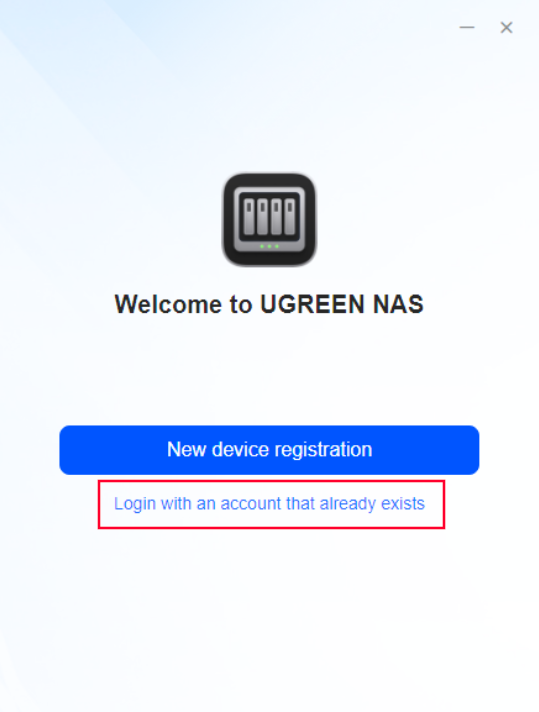
- Once you have your credentials select “Login with an account that already exists” and proceed by inserting the provided credentials (Device is “bcs-nas.local”)
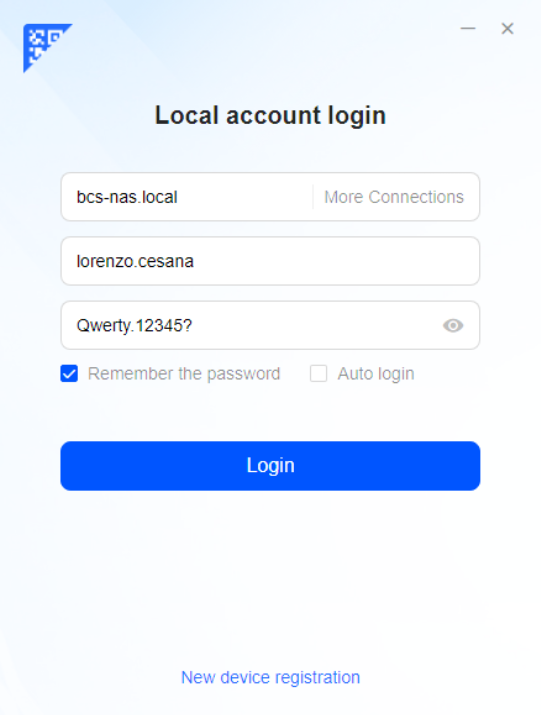


Please change the password after the first login.
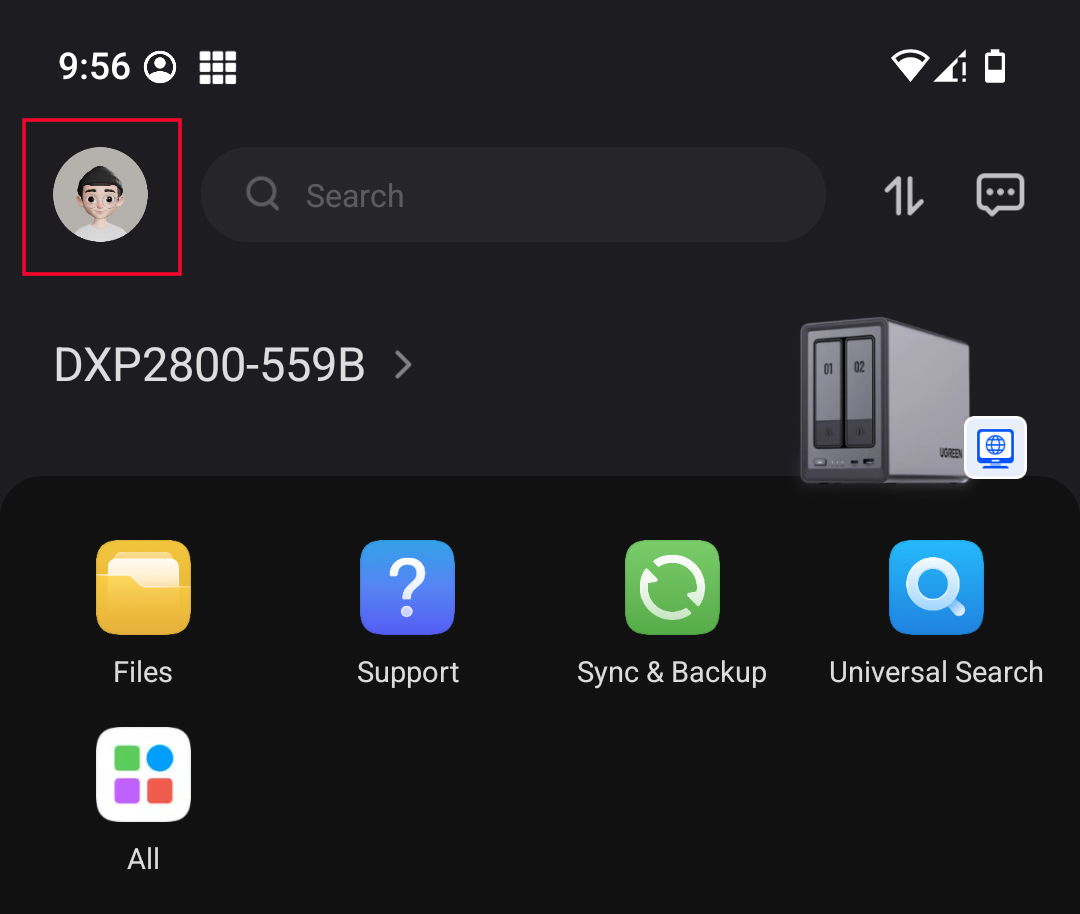
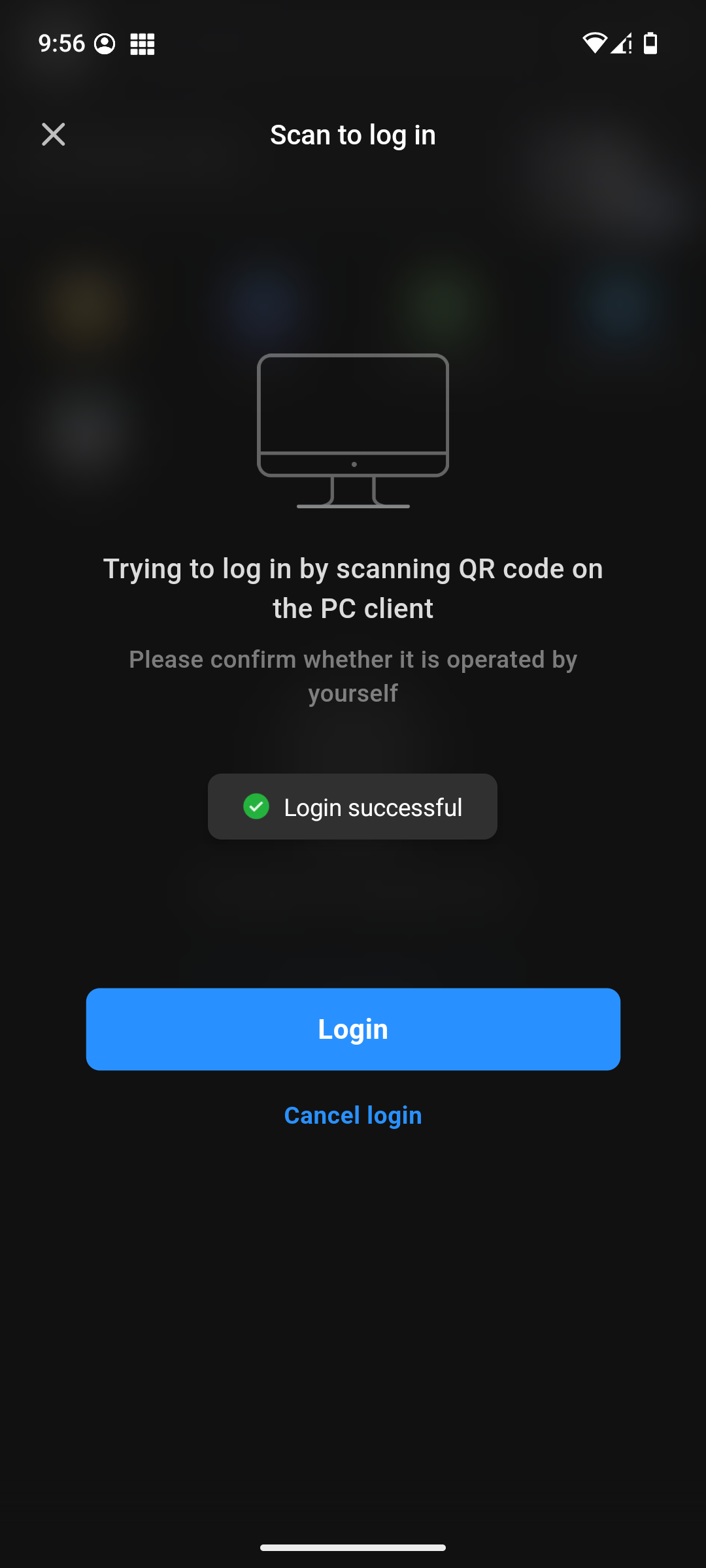
- You can also first login on your smartphone (same procedure) and then log in on the desktop app by just scanning the QR code:
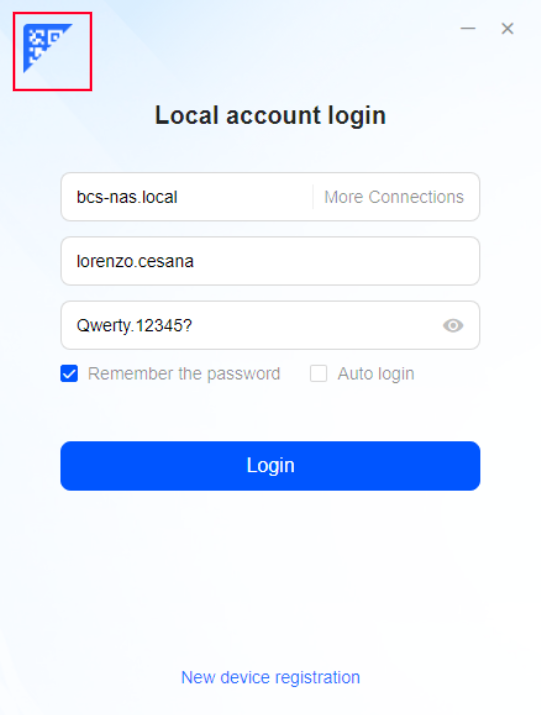
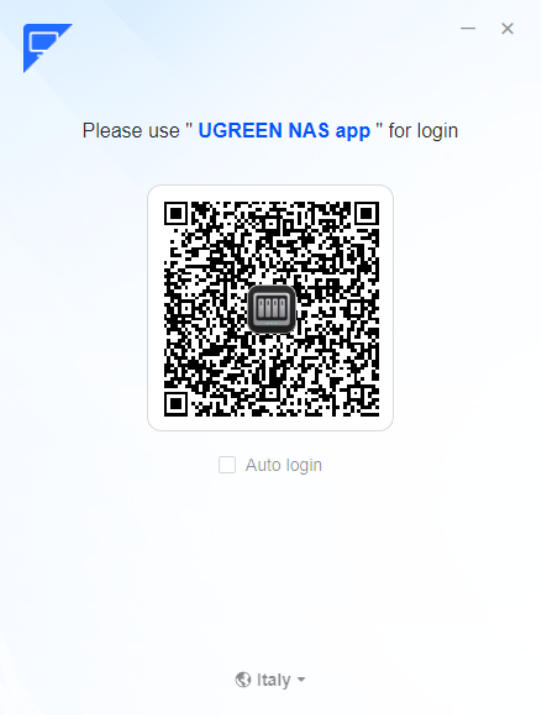
- On the smartphone app select your user icon and tap on the dedicated button, after that simply scan the QR code on your desktop:


Interface
The interface is very similar to Windows 11:

Setting up automatic backups
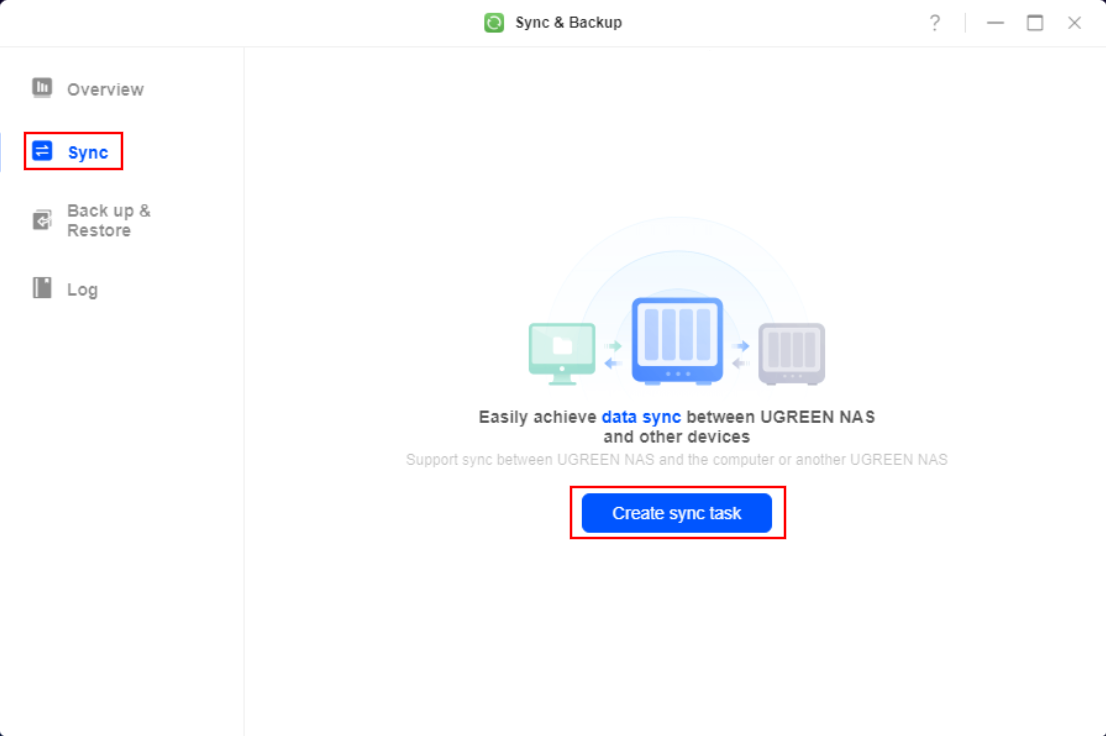
- Open “Sync & Backup” and, on the “Sync” page, click the “Create sync task” button
- For a basic sync task use the following options (use your own paths and names)
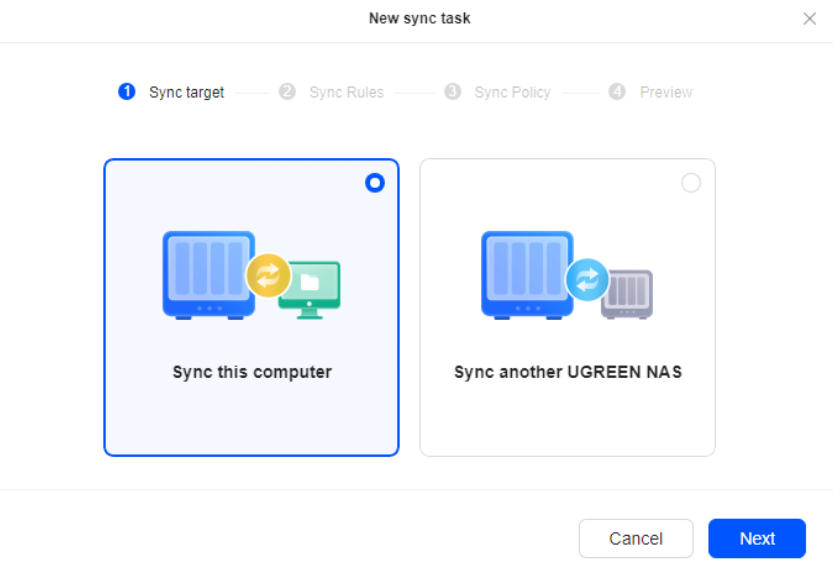
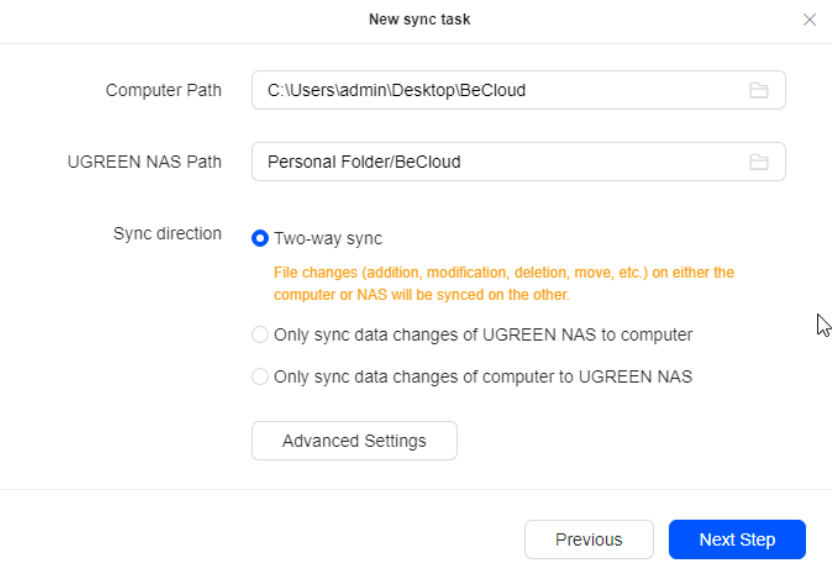
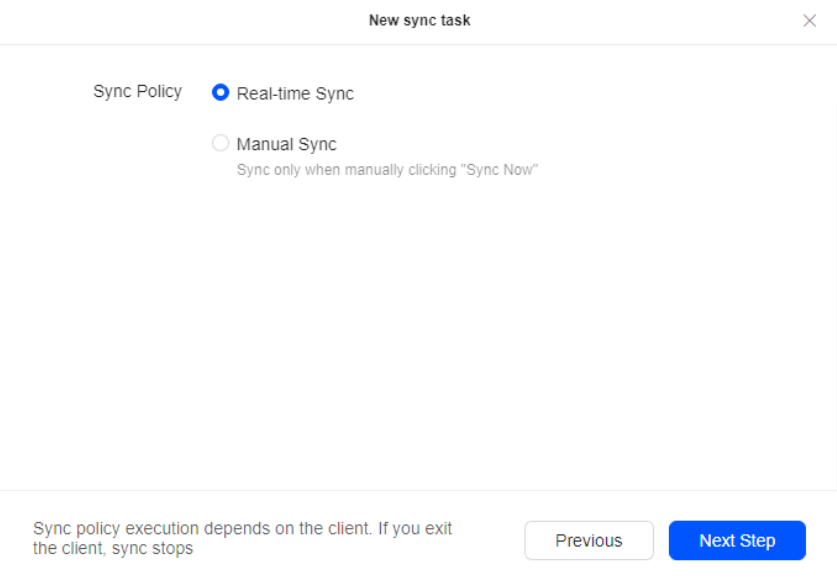
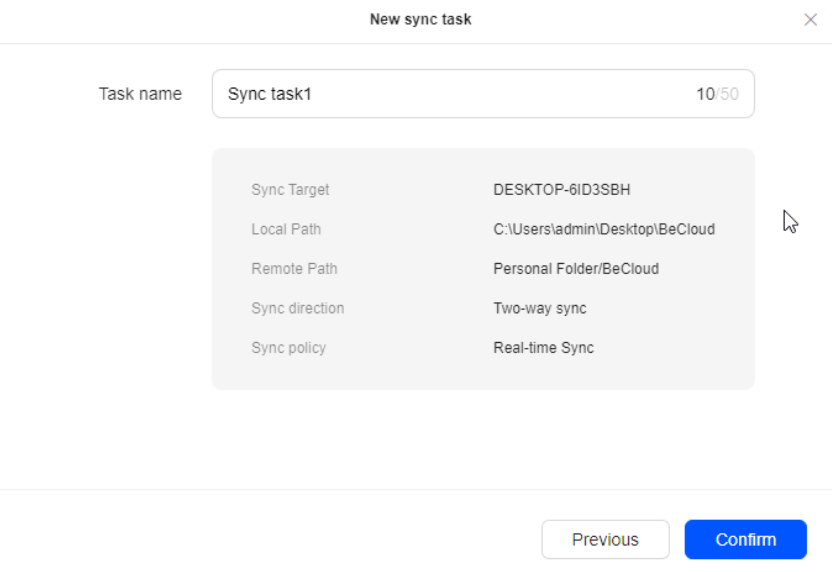


This allow to automatically synchronize all files specified from the “Local Path” folder (on your PC/Smartphone) into the “Remote Path” (on the NAS), here's a practical example:
- I have my BeCloud folder on my PC, and I select it as “Local Path”
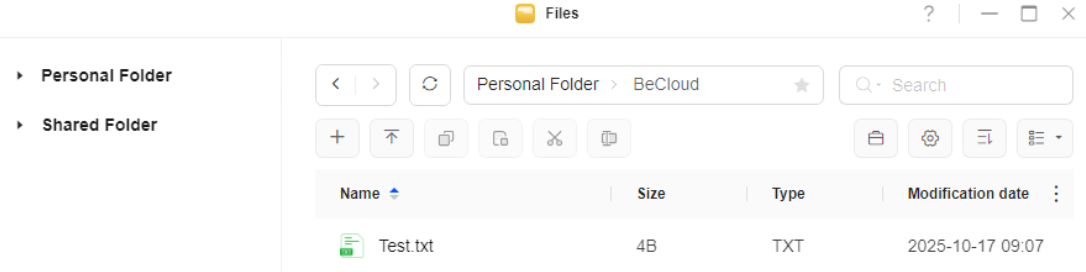
- I create the “BeCloud” folder in “Personal Folder” on the NAS, and I select it as “Remote Path”
- I create a test file in my PC's “BeCloud” folder
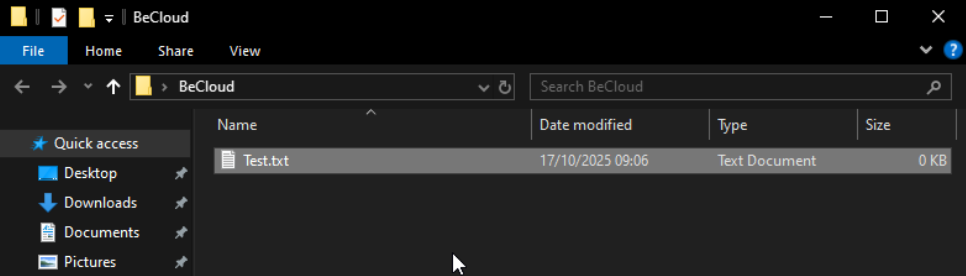
- When I save the file, it's automatically uploaded to my “BeCloud” folder on the NAS. This is also done when I change the file content


Tips
You can create different sync tasks for different folders and also have periodic backups instead of “live” ones.
Files in “Personal Folder” are private for each user and can't be accessed by others, “Shared Folder” are accessible by everyone.
Automatic sync can be useful to keep up to date shared KeePassXC databases, which can be useful for shared credentials. For example I have a personal KeePassXC DB for BeCloud's account and one shared with the whole technical department for shared accounts like VoiceTraffic or Support emails.
— Lorenzo Cesana 2026/08/22 18:54