
Table of Contents
Setting up office's VPN
In order to access some sensible server configuration (like all SSH connections to production servers on AWS and BeCloud website FTP) or some device in the local network (like our internal NAS for backups) everyone have a dedicated VPN configuration.
This guide show how to configure and enable your personal profile provided by your network admin.
If you are and admin and need to create a new profile, please refer to the official TP-Link guide.
Installation
Configuration
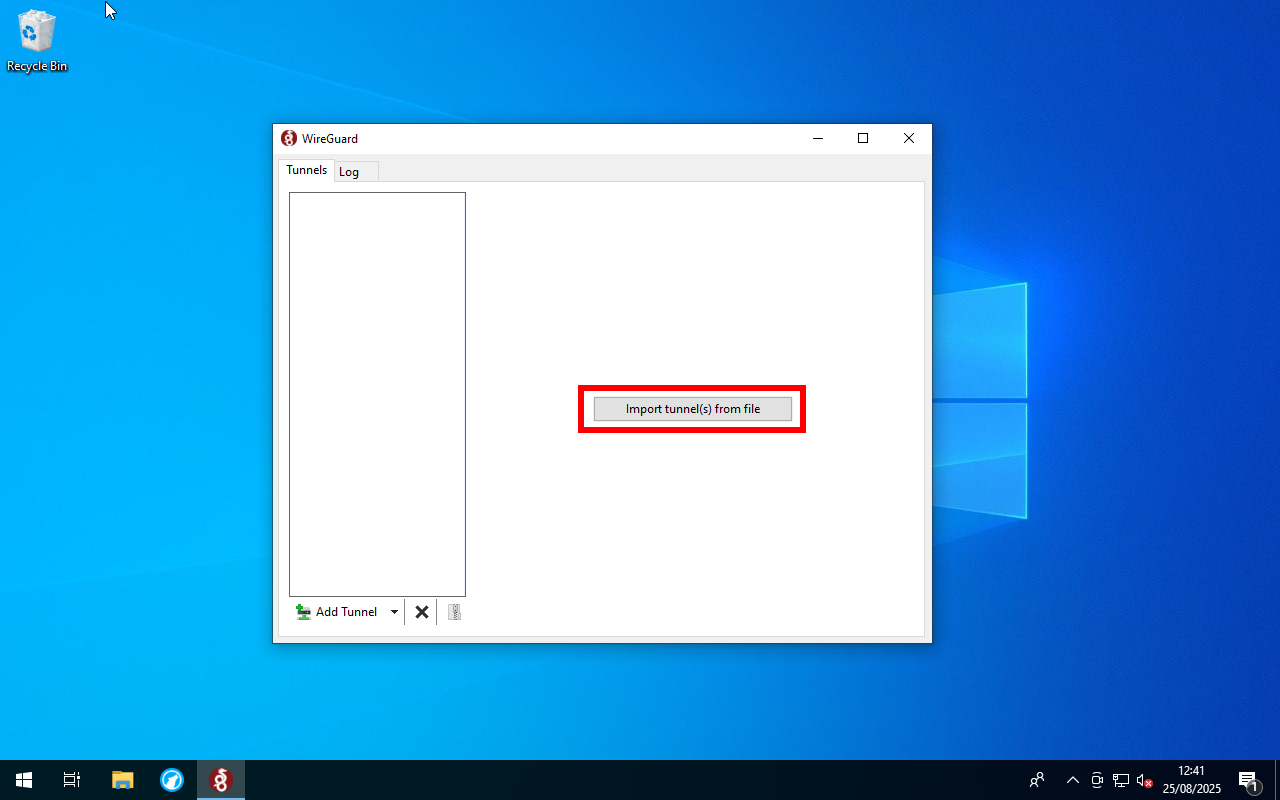
- Click on “Import tunnel(s) from file”
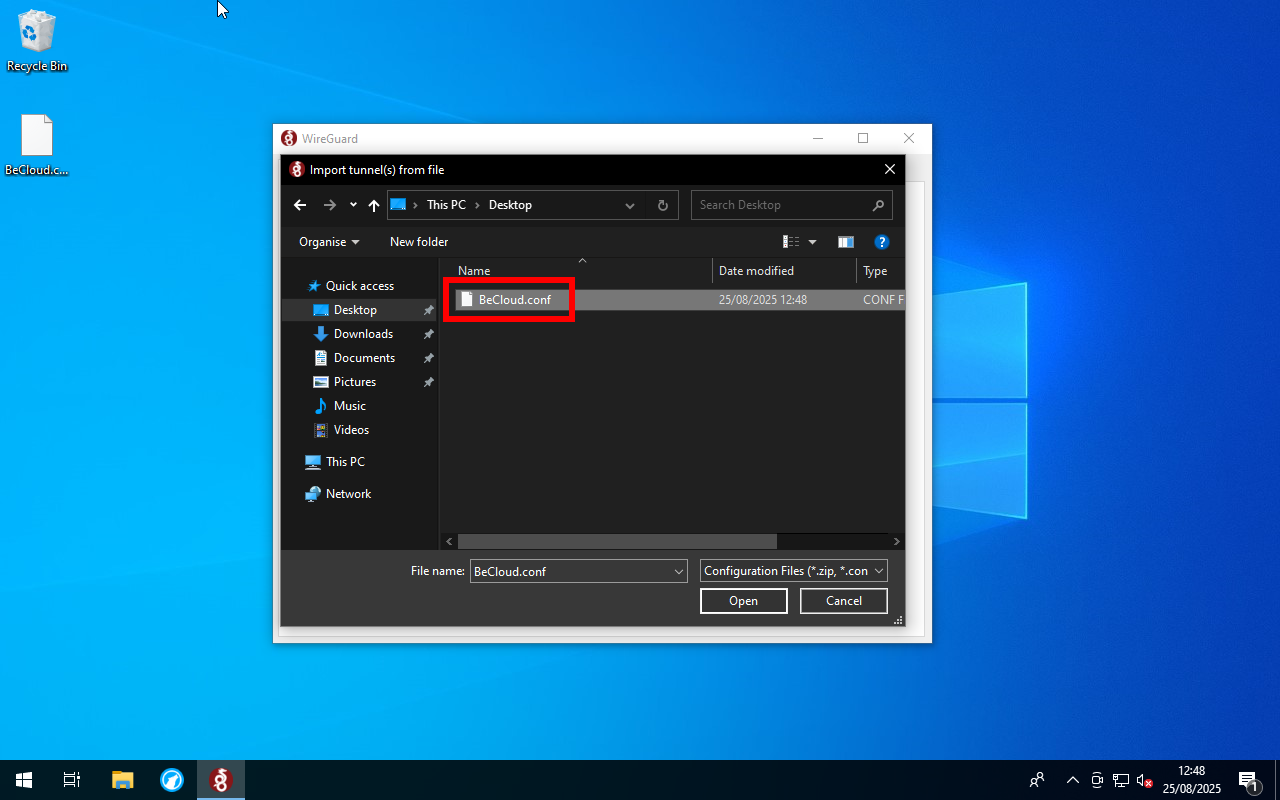
- Select the .conf file your network admin provided to you
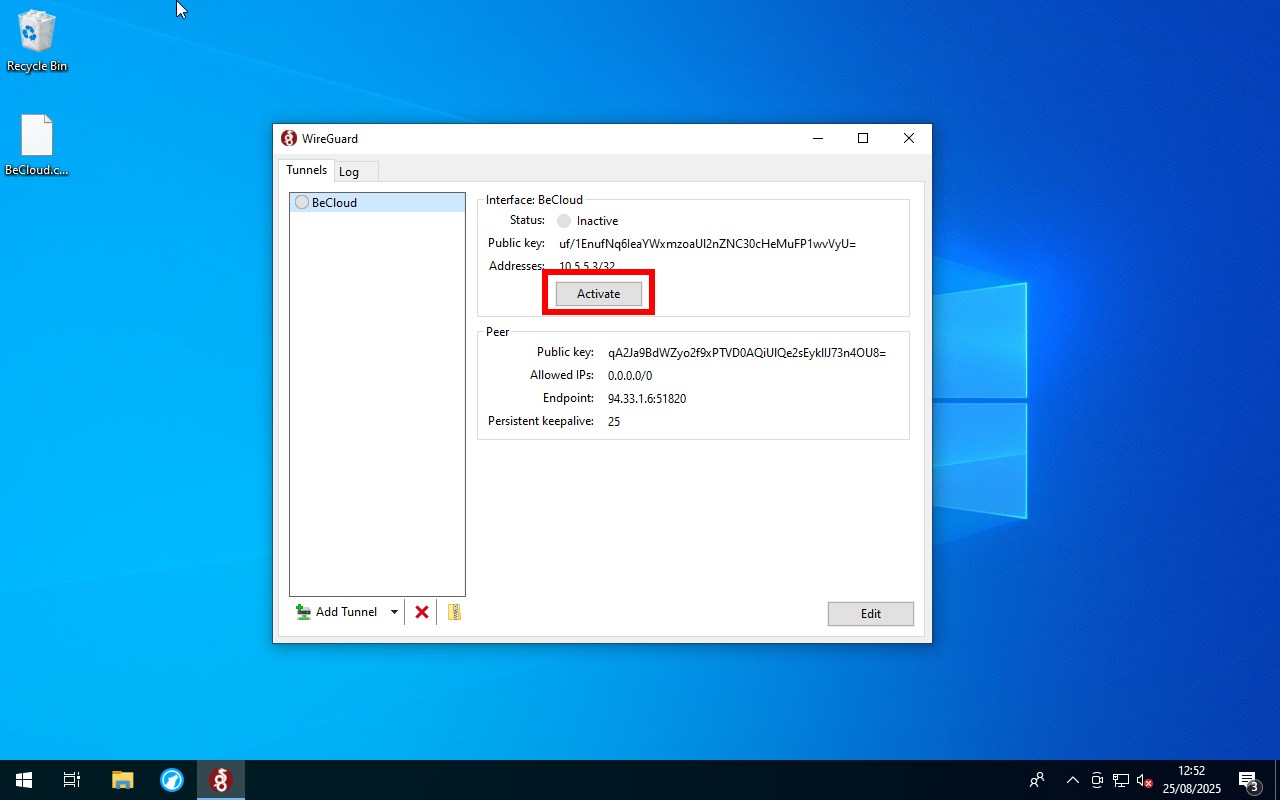
- To then activate the connection click on “Activate”, selecting the imported profile


The steps are the same for the mobile app, if you have any problems please contact your network administrator lorenzo.cesana@becloudsolutions.com.
You have to switch on this VPN if you are outside the office and have to access one of the service mentioned at the start of this guide, it does not need to stay on all the time, but it's an option. I suggest to enable it only when needed.
— Lorenzo Cesana 2026/08/07 15:21